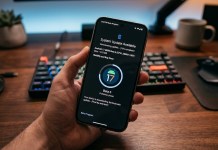

Google Pixel owners are suddenly discovering a hidden AI calling feature that makes phone calls sound dramatically clearer — even in traffic, crowds, or windy conditions. It’s called Clear Calling, and once enabled, it works automatically.
If you’re using a Pixel 7 or newer, this setting could completely change how your calls sound.
🔊 What Is Clear Calling on Pixel?
Clear Calling is an AI-powered noise reduction feature built exclusively for Google Pixel phones. Instead of lowering all background sounds, Pixel’s AI isolates your voice and removes everything else in real time.
Why It Feels Different:
Focuses on speech, not volume
Removes traffic, wind, and crowd noise
No internet needed — works on-device
Activates automatically during calls
📱 Supported Pixel Devices
Clear Calling works on:
Pixel 7 / 7 Pro
Pixel 7a
Pixel 8 / 8 Pro
Pixel 8a
Newer Pixel phones
❌ Pixel 6 and older models are not supported.
⚙️ How to Enable Clear Calling (30-Second Guide)
Open Settings
Tap Sound & vibration
Select Clear Calling
Turn the toggle ON
That’s it. No extra setup. No app install.
🤖 Why Clear Calling Sounds So Good
Google uses on-device AI models trained to:
Detect human speech frequencies
Suppress non-voice noise
Preserve natural voice tone
Because everything runs locally, your calls stay private and secure.
📈 Why This Pixel Feature Is Suddenly Trending
Viral Pixel tips on social media
More users upgrading to Pixel 7+
Android updates highlighting AI features
Growing frustration with noisy calls
Clear Calling is now one of the most searched Pixel settings.
💡 Pro Tips for Best Results
Works best on regular phone calls
Keep the microphone area clean
Combine with Wi-Fi calling
Update to the latest Android version
📌 Final Take
Clear Calling proves why Pixel phones stand out in AI. One simple toggle can turn chaotic, noisy calls into clear conversations — and many users still don’t know it exists.