

If you have been eagerly waiting to test out the next major Android upgrade on your smartphone, the wait is over. ColorOS 17 Open Beta registration is officially live in India.
OPPO and OnePlus have opened recruitment, allowing power users to test out early builds ahead of the broader rollout. Alongside new system tweaks, the update brings an array of ColorOS 17 features and fluid lock screen animations that elevate the overall user experience.
Here is everything you need to know about eligible devices, how the recruitment process works, and how to successfully apply for the beta program today.
Eligible Devices in India
The open beta program is currently open for a select list of premium and mid-range flagships across OnePlus and OPPO lineups. If you want to check if your phone will eventually receive the stable update, review the complete ColorOS 17 global launch date and eligible devices list.

OnePlus Devices
OnePlus 15
OnePlus 15R
OnePlus 13
OnePlus 13s
OnePlus 13R
OPPO Devices
OPPO Find X9
OPPO Find X9 Pro
OPPO Find X9 Ultra
How to Register for the ColorOS 17 Open Beta
Enrolling your smartphone into the beta pipeline takes just a few taps directly inside your system settings. Once updated, users will also get early access to ColorOS 17 open beta camera and interconnection features designed to improve multi-device workflows.
Follow these steps to submit your application:
Open the Settings app on your eligible smartphone.
Navigate to System & Update (or About Device depending on your current build).
Tap on Software Update.
Tap the three dots (menu icon) in the top-right corner.
Select Beta Program.
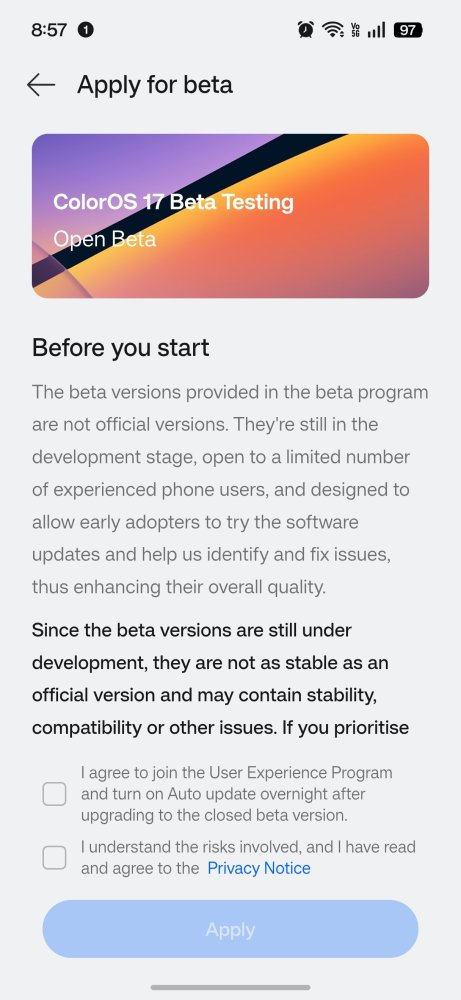
Look for the Closed Beta / Open Beta section and tap the Apply button.
The Pre-Application Quiz: What You Need to Know
Unlike standard software updates, enrolling in the beta program requires completing a brief prerequisite quiz before submitting your application.
Purpose: The test ensures you understand the nature of early preview software—such as potential bugs, battery drain, app instability, or performance hiccups.
Scoring: Aim for a score above 80 points.
Attempts: You can take the test as many times as needed. Your highest score will be recorded for evaluation.
Important Note: Achieving a high test score shows you are ready for a test environment, but it does not guarantee automatic approval. Slots are limited and granted on a rolling basis.
Essential Checklist Before You Apply
Before pushing the update button, keep these golden rules in mind:
Back Up Your Data: Beta builds can occasionally experience system crashes or require a rollback, which wipes device memory. Always back up important photos, contacts, and files to cloud storage or a PC.
Charge Your Phone: Keep your battery level at least at 60% before starting the installation process.
Secondary vs Primary Phone: If your device is your primary daily driver for work or banking apps, consider waiting for the stable release, as preview builds may disrupt banking authentication apps.