
Custom Android skins have long competed on speed, animations, and feature parity, but Vivo’s OriginOS has consistently carved out its own space by focusing heavily on UI aesthetics, fluidity, and visual depth. With the latest developments surrounding OriginOS, Vivo is taking personalization and control flexibility a step further with an innovative dynamic UI feature called Time-Based Lighting alongside a completely overhauled dual-layout Control Center.
Designed to make your home screen feel tactile and alive, Time-Based Lighting dynamically transforms traditional flat elements into interactive, depth-filled designs. By subtle manipulation of highlights, shadows, and virtual elevation, icons and widgets switch seamlessly between a clean 2D layout and a soft 3D embossed look based on time and lighting context.
As detailed in our previous coverage on OriginOS 7 official features and performance upgrades and the OriginOS 7 rollout schedule, Vivo continues to balance foundational performance rebuilds with rich, eye-catching visual customization.
Understanding Time-Based Lighting in OriginOS
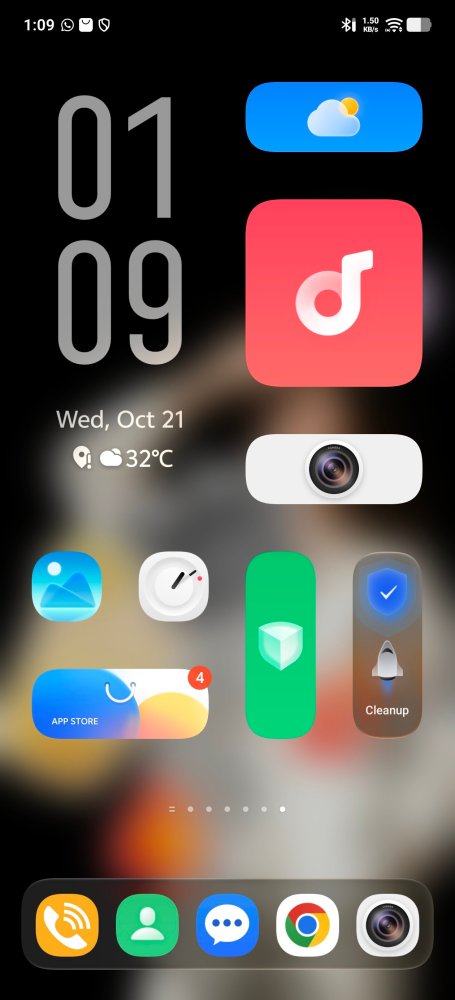
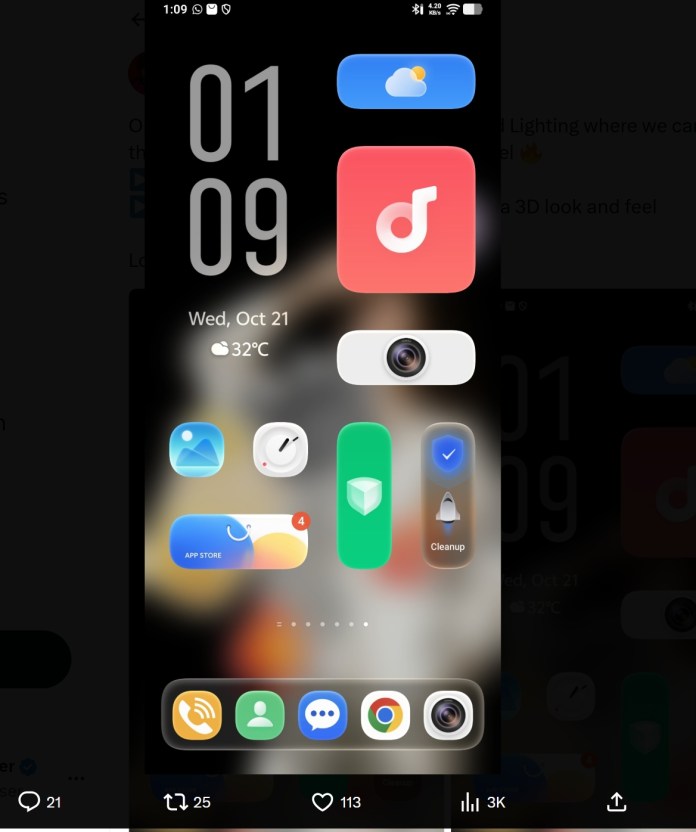
At its core, Time-Based Lighting works as a context-aware rendering engine built directly into the OriginOS launcher. Instead of static themes or fixed icon packs, the system dynamically adjusts the visual elevation and shadow direction of app icons and home screen widgets.
1. Flat 2D Mode: Clean and Minimalist
In standard lighting or during specific times of day, the user interface retains a classic, flat, clean aesthetic. As seen in early UI previews, app icons—like the Gallery, Clock, App Store, and Phone apps—rest flat against the wallpaper. Shadows are minimal, keeping the overall design lightweight and straightforward.
2. Dynamic 3D Look and Feel: Tactile Depth
When Time-Based Lighting activates, the launcher recalculates screen contrast and directional highlights. Icons and widget containers gain subtle inner glows, curved edge gradients, and cast-shadow physics. This subtle effect creates a distinct 3D, clay-like or glassmorphic depth, making elements look elevated off the glass display as if illuminated by ambient room lighting or sunlight angles.
The New Control Center Layouts: Merge Mode vs. Split Mode
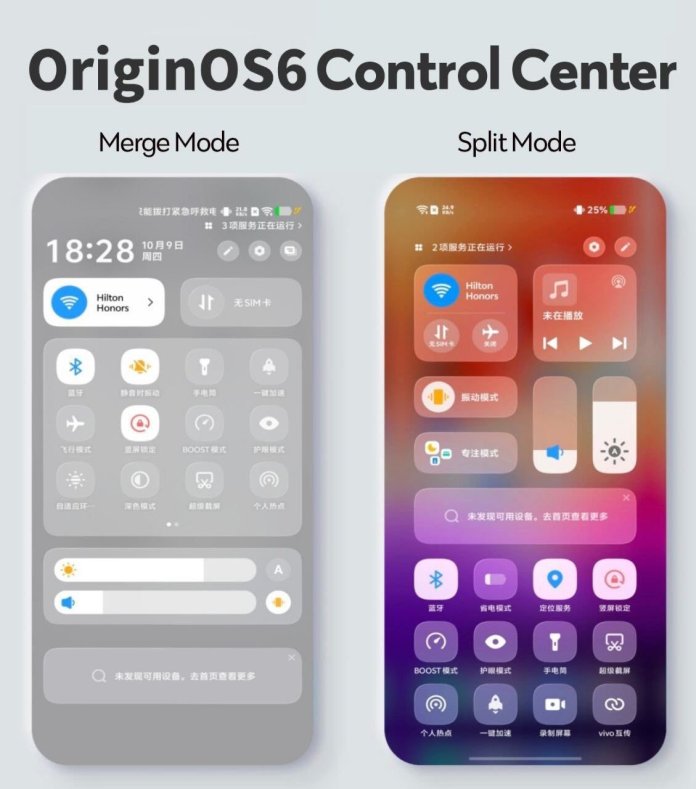
Alongside the 3D home screen visuals, Vivo’s updated control interface gives users complete flexibility over how they manage rapid settings, media playback, and connectivity tools. The new Control Center interface offers two distinct operational modes:
+-------------------------------------------------------------------+
|                        ORIGINOS CONTROL CENTER                    |
+---------------------------------+---------------------------------+
|          MERGE MODE             |           SPLIT MODE            |
+---------------------------------+---------------------------------+
| • Unified Single-Screen Layout  | • Multi-Tile Segmented Layout   |
| • Quick-Toggle Priority Grid    | • Dedicated Large Media Player  |
| • Compact Brightness/Volume Sliders | • Expanded Sliders & Device Hub |
| • Integrated Notifications      | • Dual-Swipe Gesture Division   |
+---------------------------------+---------------------------------+
1. Merge Mode (Unified Efficiency)
Merge Mode combines notifications, device toggles, and status indicators into a single, cohesive drop-down panel.
Compact Layout: Ideal for one-handed operation, placing essential toggles—such as Wi-Fi, Bluetooth, Mute, Flashlight, and Eye Protection—into a tight, organized matrix.
Minimal Friction: Swipe down once to see notifications, quick settings, and dual horizontal sliders for brightness and volume without losing context.
2. Split Mode (Separated Depth & Control)
Split Mode divides notifications and control tiles into distinct pull-down zones.
Media-First Design: Features a full-card media widget at the top with artwork previews, track controls, and output routing options.
Dedicated Sliders: Uses prominent, vertical pill-shaped sliders for volume and screen brightness, giving precise tactile feedback under single-thumb swipes.
Device Hub Integration: Incorporates a devoted bottom panel for quick pairing, casting, and multi-device connection management.
What We Think: Why This Matters for the Smartphone Experience
Vivo’s approach with OriginOS demonstrates a deep understanding of user personalization. While many operating systems force users into a single rigid control paradigm or flat aesthetic, OriginOS bridges the gap:
Freedom of Choice: Giving users the choice between Merge Mode and Split Mode solves the long-standing debate between single-shade accessibility and iOS/HyperOS-style split panels.
Tactile Elegance: Time-Based Lighting brings back the visual satisfaction of depth and skeuomorphism without feeling cluttered or heavy.
Visual Consistency: Combined with Vivo’s smooth fluid animations, transitioning between 3D icons on the home screen and translucent control panels feels seamless and polished.
To explore how these design choices compare against other top mobile skins, check out our full OriginOS vs. ColorOS comparison guide or read up on OriginOS 7 lock screen customization and liquid themes.