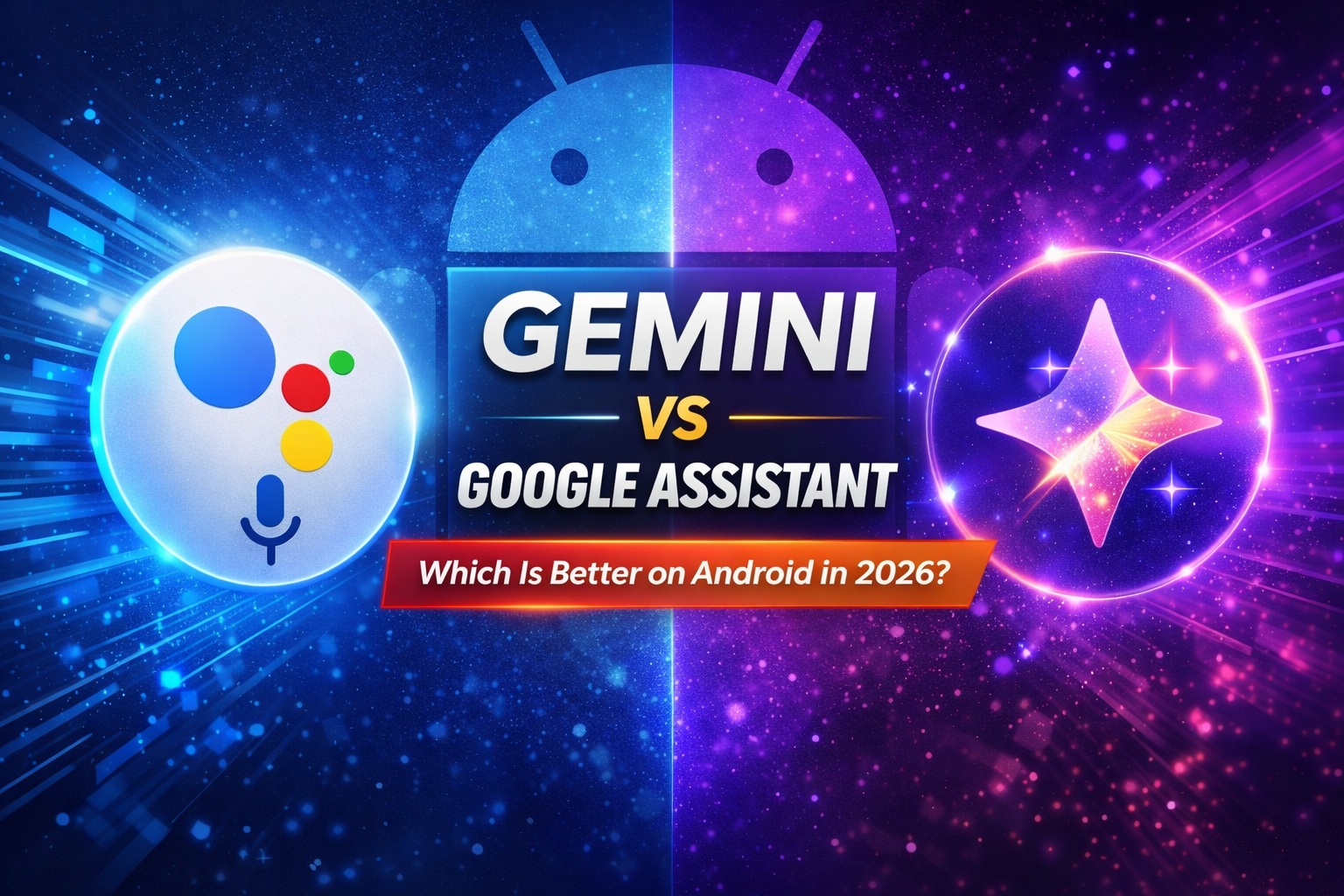
Google’s AI strategy for Android is shifting fast. Google Assistant has been the long-standing voice assistant on Android phones, speakers, cars, and smart displays. But Google Gemini, powered by advanced generative AI, is becoming the next-generation assistant — and Google plans to make it the default on Android in 2026.
Let’s break down the differences so you know what works best for you today. 🚀
⚙️ What They Are — Quick Intro
Google Assistant
• A voice-first assistant that understands quick commands like setting alarms, controlling smart devices, checking weather, navigation, and reminders.
• Deeply integrated into Android, smart home devices, Android Auto, Google Nest, and more.
Google Gemini
• A powerful AI assistant built on Google’s large language models for generative AI, aiming to go beyond simple commands with deeper understanding and richer responses.
• Currently available through the Gemini app and gradually integrated into Android OS features.
🔍 Key Areas Compared
🧠 Intelligence & Conversation
Gemini shines at:
Understanding natural, conversational language — you don’t have to phrase commands just right.
Handling complex queries, brainstorming, research, and creative tasks (like writing emails or summarizing text).
Assistant is great at:
Straightforward, short voice commands that expect fast responses.
Tasks like “send a message” or “how’s the weather?” with minimal delay.
👉 Winner (for depth): Gemini — better at nuanced, context-aware interactions.
⚡ Speed & Everyday Tasks
Assistant responds almost instantly for routine actions like:
Setting timers, alarms
Controlling smart lights and appliances
Checking traffic or weather
Gemini sometimes takes a bit longer as it reasons deeper to craft its replies, which can feel slower for quick tasks.
👉 Winner (for quick voice commands): Google Assistant
🏠 Smart Home & Ecosystem Integration
Google Assistant has years of mature integrations with smart home systems, cars, TVs, and wearables. It’s the established controller for lights, thermostats, and routines.
Gemini’s integration is growing — and it’s being built to eventually replace Assistant — but right now some features like smart home routines aren’t fully available yet.
👉 Winner (for ecosystem): Google Assistant (for most users today)
🔒 Context & Productivity
Gemini wins with:
Deeper context awareness (it knows what’s on your screen).
Can interact using text, voice, images, and files to help with planning and creative work.
This makes Gemini especially useful for students, professionals, writers, and people who want AI-powered productivity tools on their Android devices.
📱 Feature Gaps Right Now
Right now, Gemini still lacks some of Assistant’s mature features:
Full smart home routines
Built-in voice commands for music, podcasts, maps
Some assistant-specific modes, like Interpreter mode or certain reminders
In these cases, Android can fall back to Assistant to handle the action, or the features may still be missing depending on device and software versions.
🧠 So … Which Is Better?
| Use-Case | Best Choice |
|---|---|
| Quick voice commands & smart home control | 📣 Google Assistant |
| Deep questions, creativity, explanations | 🧠 Google Gemini |
| Future-proof Android experience | 🚀 Google Gemini (becoming the default in 2026) |
| Trusted ecosystem & reliability today | 🔒 Google Assistant |
📅 Transition Timeline
Google has delayed the full switch from Assistant to Gemini, and the transition will extend into 2026 to ensure features work smoothly across devices.
📍 Final Thoughts
✅ Google Assistant is still better for everyday, fast voice commands and smart home control.
✅ Google Gemini offers smarter AI reasoning, richer answers, and creative help, but may feel slower for simple tasks right now.
In the near future, Google wants Gemini to replace Assistant entirely on Android — bringing a more intelligent, conversational experience to millions of users.