

Remember the old days of typing out phone numbers character by character at a networking event, or waiting for Bluetooth devices to discover each other just to send a vacation photo? Those multi-step headaches are finally becoming a thing of the past.
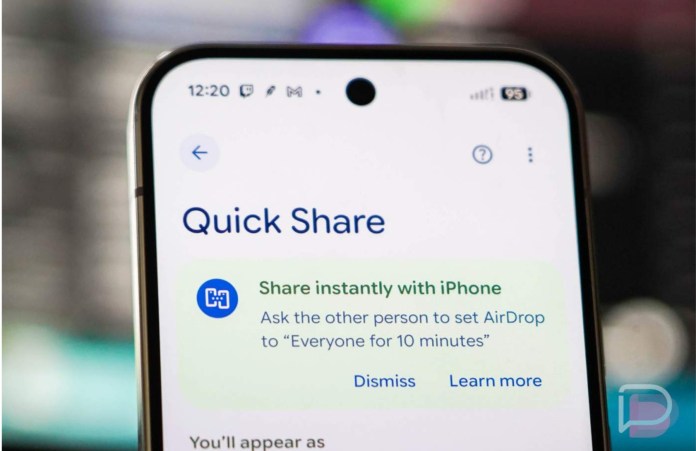
Google has officially introduced Tap to Share powered by Quick Share, bringing effortless, physical-gesture file and contact swapping directly to the Android ecosystem. By simply bringing two compatible Android devices close together, you can transfer contact cards, photos, videos, links, and documents in seconds.
What Exactly is Android’s “Tap to Share”?
At its core, Tap to Share merges the magic of Near Field Communication (NFC) handshakes with the high-speed data transfer speeds of Wi-Fi Direct and Bluetooth.
Instead of scrolling through a long list of nearby names in the share menu, you open what you want to send, physically tap the top edges of your phones together, and watch the transfer happen instantly.
What You Can Share with a Single Tap:
Contact Cards (vCards): Meet someone new, unlock your phone on the home screen, tap, and exchange contact info instantly.
Photos & High-Res Videos: Share media straight from your gallery without compression losses.
Web Links & Locations: Instantly beam a Google Maps pin or article to a friend’s screen.
Local Files & Documents: Hand over PDFs, audio clips, or downloads on the spot.
How It Works: Step-by-Step
Using Tap to Share is remarkably intuitive once both devices have the feature enabled:
Unlock Your Phone: Ensure both Android devices are unlocked and screen-on.
Select Your Content: Open the image, document, or link you want to share, and tap the standard Share button (or stay on your home screen to share contact details).
Tap Devices Together: Gently bring the top edges or upper backs of both phones together.
Feel the Handshake: You’ll see a subtle screen visual glow and feel a haptic buzz confirming the connection—the recipient accepts, and the file transfers blazingly fast.
According to Google’s official update, this seamless physical interaction eliminates friction in daily sharing, making Android-to-Android file transfers feel natural and tactile.
Smart Hardware Engineering Behind the Gesture
Why does this feel so much smoother than past NFC attempts like Android Beam? Hardware design.
To make the tap gesture feel natural, phone manufacturers are optimizing NFC placement. For instance, on newer devices like the Pixel 11 series, Google shifted the NFC module to the top frame rather than placing it near the middle. This subtle design tweak means you no longer have to play a guessing game, awkwardly sliding phone backs around trying to find the sweet spot.
Universal Android Support: Expanding Beyond Pixel
While the rollout initially highlights Google Pixel hardware, this isn’t an exclusive walled-garden feature.
As highlighted in this detailed breakdown on NokiaPowerUser, Quick Share is designed to work seamlessly across the broader Android ecosystem. Whether you’re using a Samsung Galaxy, Xiaomi, OnePlus, Motorola, or Oppo device, unified Quick Share support ensures cross-brand compatibility.
Samsung flagships and popular devices across manufacturers are receiving updates through Google Play services and system rollouts to enable this cross-device tap functionality.
Quick Tips for the Best Tap to Share Experience
Keep NFC Turned On: Make sure NFC is active in your Quick Settings toggle.
Check Device Visibility: Verify your Quick Share visibility settings are set to Contacts or Everyone depending on who you’re sharing with.
Update Google Play Services: Keep your system services up to date so your phone automatically picks up the latest Quick Share feature enhancements.
The Verdict
Android’s Tap to Share brings tactile convenience back to file sharing. By turning an everyday physical gesture into an instant digital connection, Google has given Android users one of the most satisfying usability upgrades in years.


