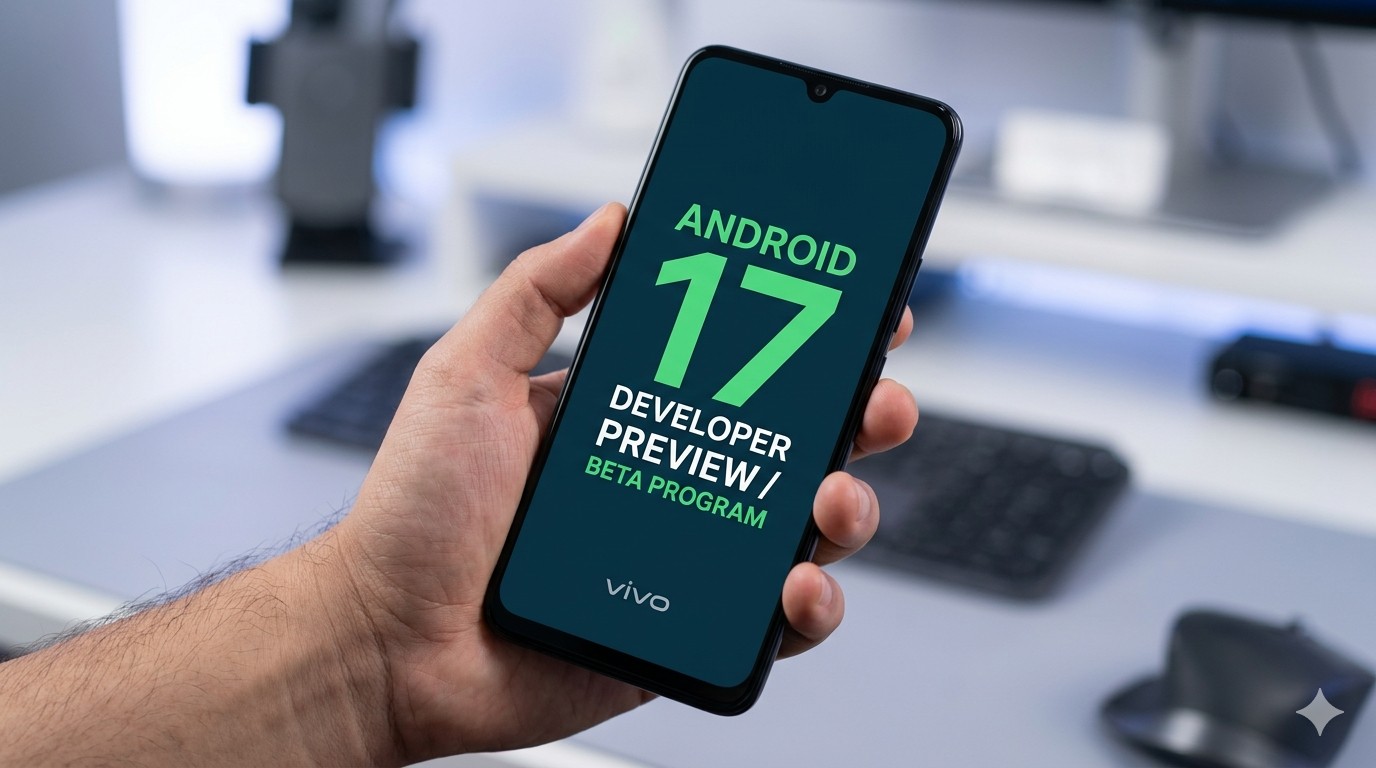
Google is moving fast with its Android 17 development pipeline, and smartphone manufacturers are racing to keep up. Leading the pack, Vivo has officially opened its Android 17 Developer Preview Program, launching the highly anticipated Android 17 Beta 3 build.
Aimed at developers and early adopters, this release offers an exclusive first look at the next-generation operating system. It allows tech enthusiasts to test system compatibility and helps developers optimize their apps before the stable consumer rollout.
If you want to try out the cutting edge of Android on your Vivo device, here is everything you need to know—from supported models to a step-by-step installation guide.
Supported Vivo and iQOO Devices
Currently, Vivo is limiting the Android 17 Developer Preview to its top-tier flagship lineup. To participate in the beta program, you must own one of the following smartphones:
Vivo X300 Pro
iQOO 15
Note: Budget and mid-range lineups, such as the V-series and Y-series, are excluded from this early developer phase. They will receive the stable version later in the deployment cycle.
Release Timeline and Regional Availability
Vivo’s Android 17 deployment is closely tracking Google’s platform stability milestones:
April 8, 2026: Vivo launched the first phase based on Android 17 Beta 2.
May 14, 2026: Vivo deployed the Android 17 Beta 3 build, achieving core API stability.
The Beta 3 firmware is available globally across various regional SKUs, including:
Asia-Pacific & Middle East: India, Indonesia, Thailand, Malaysia, Philippines, Taiwan, Hong Kong, Singapore, Vietnam, UAE, Saudi Arabia, Pakistan, Bangladesh, Nepal, Sri Lanka, Bhutan.
Europe & Eurasia: Spain, Italy, Germany, Austria, Czech Republic, Poland, Hungary, Turkey, Russia, Kazakhstan.
Africa & Americas: Egypt, Kenya, Tanzania, South Africa, Mexico, Peru, Chile, Colombia.
Key Android 17 Features and Platform Changes
Android 17 brings deep structural changes designed to enhance privacy, maximize performance, and improve usability on large-screen form factors.
1. Advanced Privacy & Security
Anti-OTP Interception: To combat fraud and phishing, Android 17 restricts unauthorized background apps from reading SMS OTPs for up to three hours. Only apps utilizing official secure APIs bypass this shield.
Background Audio Restrictions: Apps can no longer access background audio unless they are actively visible on screen or hold strict foreground permissions.
2. Large Screen & Productivity Upgrades
Touchpad Pointer Capture: For foldables and tablets connected to peripherals, the touchpad behavior now mimics a traditional desktop mouse by default. This makes navigation smoother for productivity apps and 3D gaming.
Granular Contacts Picker: Instead of giving an app blanket access to your entire contact list, you can now choose to share only specific contact details.
3. Core Performance & Standby Efficiency
Redesigned MessageQueue: A new lock-free system architecture minimizes background processing overhead.
Intelligent Wake Lock Management: The system optimizes background power drain during idle states, resulting in noticeable improvements to standby battery life.
How to Install Vivo Android 17 Beta 3
If you are ready to test the beta software, you can manually flash the firmware using Vivo’s local update method.
CRITICAL WARNING: Installing a developer beta firmware will completely wipe your device. Back up all your personal data, photos, and login credentials before proceeding.
Step-by-Step Flashing Instructions:
Visit the official Vivo Developer Portal and download the specific Android 17 Beta 3 firmware package for your device model and region.
Connect your phone to a computer using a USB cable.
Set the USB configuration on your phone to Transfer Files / MTP.
Copy the downloaded .zip firmware package directly into the root directory of your phone’s internal storage (do not place it inside any folder).
On your phone, navigate to Settings > System update.
Tap the Settings gear icon in the top-right corner, then select Local Update.
Select the copied firmware file, let the system complete the verification check, and confirm the installation. Your device will automatically reboot into Android 17.
Known Bugs and System Risks
Because this is an early-stage developer build, it contains several performance and stability issues. Vivo has highlighted the following known bugs in Beta 3:
Control Center Crashes: Toggling the auto-brightness icon inside the quick settings panel can cause sudden system UI crashes.
Display Resolution Bug: Switching your device’s display setting from Ultra HD to standard HD may trigger an abrupt, unexpected reboot.
Biometric Failures: Using the in-display fingerprint sensor to unlock the device can occasionally crash your active application and force you back to the lock screen.
App Compatibility: Some third-party applications may refuse to open or experience heavy lag until their developers release Android 17 compatibility updates.
If these bugs impact your daily workflow, you can download the official Android 16 rollback package from Vivo’s portal and follow the same local update steps to safely downgrade.
Beyond Vivo: Is Your Phone Getting Android 17?
While Vivo flagships are among the first to taste this update, millions of smartphone users are waiting to see when their devices will follow suit.
If you own hardware from other manufacturers or want to plan your next upgrade, explore this master Android 17 eligibility list and expected release dates to find out exactly when Samsung, Pixel, and OnePlus devices are scheduled to receive the stable operating system.